Creating Your Own Buttons on Toolbars
You can create a button for each menu command from Sequoia.
-
Click on the Custom button.

The dialog Customize toolbar icons opens.
-
In the dialog, click on Add new below Icon.
Choose an icon to be displayed on the button.
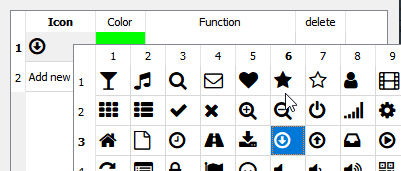
-
Under Color you set the color of the symbol. Click in the column function to open the complete main menu of Sequoia. Select the menu command to be executed with the button.
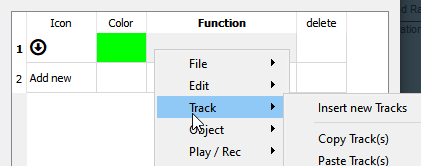
-
For another button, click on Add new in the next line. To delete a button, click the field in the column Delete in the corresponding row.
-
After closing the dialog, the new buttons are available in the Button Palette and can be added to the toolbars as described above.